


AI Tools: 5 Best Picks for Business in 2026
Most teams waste time because they test tools before they define the job. Pick one business use case, then choose the tool that matches your data, apps, and risk limits. This list covers five tools that solve common work problems fast.
| Tool | Use Case | Best For | Key Features | Pricing Model | Integrations | Limitations |
|---|---|---|---|---|---|---|
| PerfectStack.ai | Tool discovery and comparison | Founders, teams doing research | Role and use case browsing, curated listings | Not stated here | Not applicable | Does not execute workflows |
| ChatGPT | Writing, analysis, drafts, SOPs | Cross functional teams | Chat based assistance, document and text generation | Free and paid tiers | Varies by plan | Data handling needs review |
| Microsoft Copilot | Microsoft 365 productivity | M365 first companies | Excel help, Outlook and Teams support, document drafting | Subscription | Microsoft 365 apps | Best value inside M365 |
| Zapier | Automation across apps | Ops, marketing, rev ops | Workflow builder, AI steps, triggers and actions | Tiered subscription | Many SaaS apps | Complex flows need maintenance |
| Zendesk AI | Customer support automation | Support teams on Zendesk | Triage, agent assist, self serve suggestions | Subscription add ons | Zendesk ecosystem | Depends on clean support data |
How We Chose These 5 Picks
- Clear business outcome (time saved, tickets deflected, faster reporting).
- Fast onboarding, you can get value in days, not months.
- Fits real stacks (Microsoft 365, SaaS workflows, Zendesk).
- Known constraints (privacy, reliability, upkeep) so you can plan.
- Easy to shortlist using PerfectStack.ai when tool options feel endless.
1. PerfectStack.ai (https://perfectstack.ai)
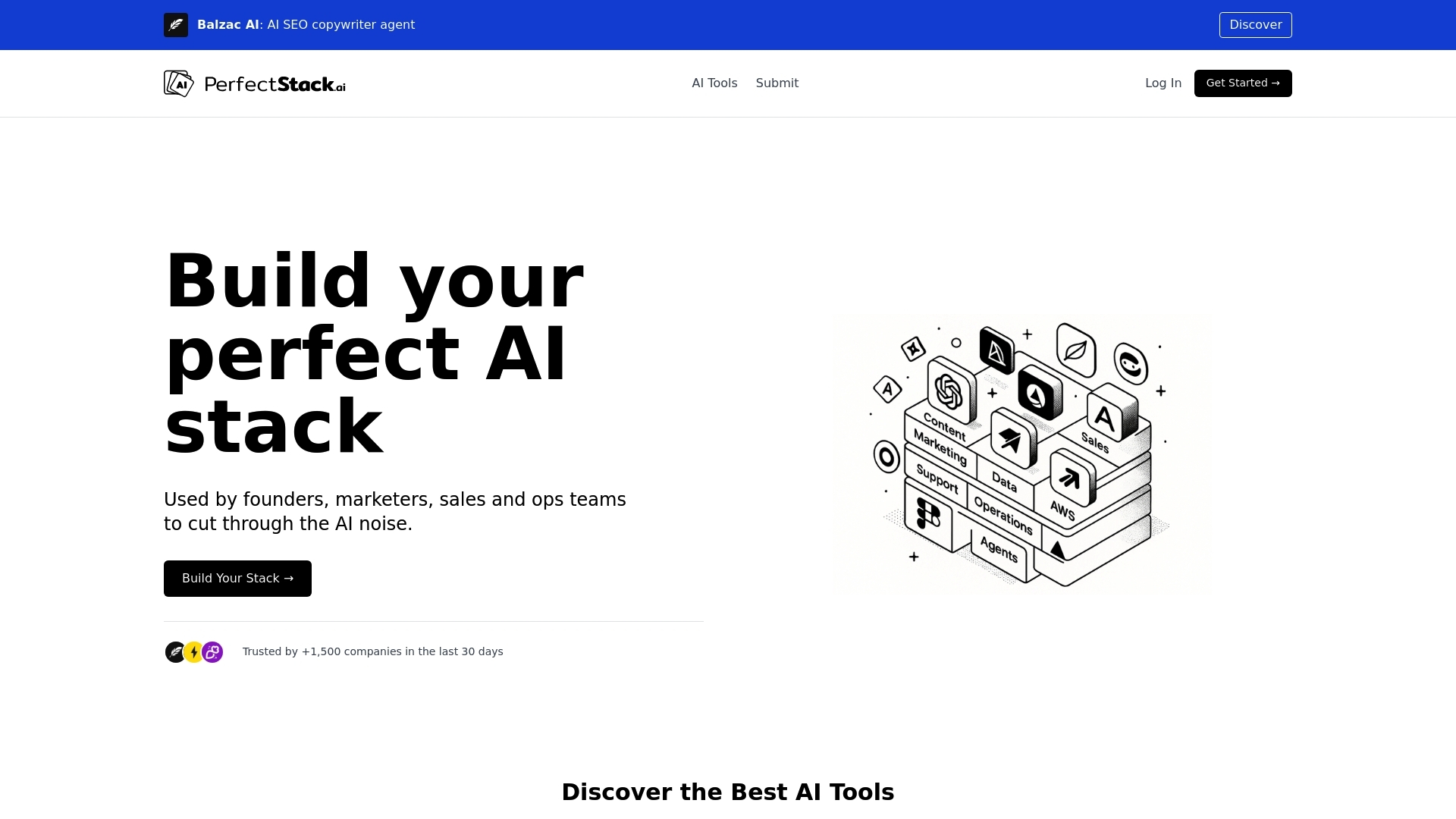
If you feel stuck in “tool research mode,” you are not alone. New AI products launch daily, and most lists mix real use cases with vague claims. PerfectStack.ai reduces the noise by organizing AI tools by role and task, so you start with your problem, not with a random tool name.
Why PerfectStack.ai Works for Fast Tool Discovery
PerfectStack.ai is a curated directory of 3,000 plus AI tools that helps teams discover, shortlist, and compare options without jumping between newsletters, social posts, and review sites. It fits best when you need a clear view of what exists right now, and you want to quickly narrow choices by function.
Search by Role and Use Case (Not by Hype)
Instead of scrolling endless “top tools” posts, you can browse categories tied to real work. That matters because a founder, a marketer, and a developer ask different questions and need different integrations.
- Founders: MVP building, operations automation, customer support stack ideas
- Marketing teams: content workflows, SEO tooling, ad creation, analytics helpers
- Product and engineering: AI APIs, coding assistants, testing and documentation tools
- Creatives: image, video, and writing tools that speed up production
Cut Research Time With Built In Comparisons
Tool pages typically include descriptions, screenshots, and direct links, so you can compare candidates in minutes. This structure helps you spot duplicates (tools that do the same job) and focus on the few that match your workflow and budget.
Stay Current Without Constant Searching
PerfectStack.ai updates daily or weekly, which helps you track what is new and trending. If you still want extra validation, cross check shortlists with neutral sources like G2 or Product Hunt before you commit.
2. ChatGPT (https://chat.openai.com)
ChatGPT works best as a flexible assistant for day to day work: you describe the task, share the inputs you can share, and it returns a draft, a plan, or an analysis you can edit. Teams use it because it reduces blank page time and speeds up routine writing and thinking tasks.
Where ChatGPT Fits in Daily Business Work
ChatGPT helps most in workflows that need clear language and structured output. Common, repeatable use cases include:
- Writing: email drafts, meeting agendas, job descriptions, press notes, product copy variations.
- Analysis: summarize long notes, extract themes from survey responses, create pros and cons, turn messy bullets into a decision brief.
- Ideation: campaign angles, webinar titles, onboarding flows, feature names, A B test hypotheses.
- SOPs: turn tribal knowledge into step by step procedures, checklists, QA scripts, escalation paths.
- Customer Replies: rewrite replies in your tone, propose troubleshooting steps, draft refund and policy messages (always review before sending).
Prompts That Produce Usable Outputs
Specific prompts beat clever prompts. Ask for format, audience, and constraints, then request one revision. Example: “Write a 150 word reply to a B2B customer, friendly tone, include these three steps, do not promise timelines.”
Data and Privacy Checks Before Rollout
Do a basic review before you share internal content. In practice, this means you set rules for what employees can paste in, and you confirm account settings with your legal and IT owners.
- Define allowed data (public info, generic templates) and blocked data (customer PII, contracts, source code, credentials).
- Decide if you need an enterprise plan with admin controls, audit logs, and stronger data handling commitments.
- Document where outputs can go (CRM, help desk, docs) and require human approval for customer facing text.
If you want alternatives for the same job, use PerfectStack.ai to compare other writing and analysis assistants by role and use case, then shortlist based on your data rules and integrations. For OpenAI policy and product details, start at OpenAI Policies.
3. Microsoft Copilot (https://www.microsoft.com/copilot)
Microsoft Copilot fits best if your company already lives in Microsoft 365. Copilot adds AI help where people already work, so teams spend less time on busywork like rewriting emails, cleaning spreadsheets, and summarizing meetings.
3. Microsoft Copilot (https://www.microsoft.com/copilot)
Where Copilot Helps Most Inside Microsoft 365
Microsoft Copilot is an AI assistant built into Microsoft products. It turns natural language prompts into drafts, summaries, and analysis inside the apps your team uses daily.
- Excel: Ask for trends, summaries, and formula help, then turn raw tables into clearer insights.
- Outlook: Draft replies, shorten long threads, and extract action items so responses stay consistent.
- Teams: Summarize meetings and chats, capture decisions, and list next steps for people who joined late.
- Word: Create first drafts, rewrite sections, and convert rough notes into structured docs and SOPs.
Best Fit For M365 First Companies
Copilot usually delivers the most value when you already standardize on Microsoft 365 (accounts, permissions, and files). In that setup, Copilot can work across the same documents and conversations people already trust, instead of forcing a new tool and new habits.
Common roles that benefit fast:
- Managers: meeting recaps, status updates, and consistent weekly reporting.
- Sales and Customer Teams: cleaner follow ups and faster handoffs based on thread context.
- Ops and Finance: quicker spreadsheet interpretation and narrative summaries for stakeholders.
Data and Privacy Checks Before Rollout
Copilot uses your work content, so access controls matter. Before you enable it broadly, confirm you can answer: who can see what, what data Copilot can reference, and where prompts and outputs go.
- Audit SharePoint and OneDrive permissions, Copilot can expose messy access.
- Start with a pilot group and define allowed use cases (meeting notes, draft emails, analysis).
- Document sensitive data rules, especially for HR, legal, and customer details.
If you need alternatives by role or budget, PerfectStack.ai helps you compare office assistants and productivity AI tools without guessing.
4. Zapier (https://zapier.com)
If ChatGPT helps you create and refine work, Zapier helps you move that work across your apps automatically. Zapier connects triggers and actions across thousands of SaaS tools so tasks run in the background instead of living in someone’s inbox.
What Zapier Does for Business Teams
Zapier is a no code automation platform that links apps through workflows (Zaps). A Zap starts with a trigger (like a new form submission) and then runs actions (like creating a CRM record). Many teams add AI steps to summarize, classify, or draft text before routing it onward.
Cross App Automations That Save Real Time
- Lead routing: When a lead comes in from Typeform or Webflow, Zapier creates or updates a contact in HubSpot or Salesforce, enriches the record, then assigns it to the right owner in Slack or email.
- Alerts and escalation: When Stripe reports a failed payment, Zapier posts an alert to a finance channel, opens a ticket in Zendesk, then schedules a follow up task in Asana.
- Enrichment: When a new company appears in your CRM, Zapier can fetch firmographic data from Clearbit (a data enrichment tool) and fill missing fields for scoring and segmentation.
- Content workflows: When a Notion page moves to “Ready,” Zapier asks an AI step to produce a meta description and social copy, then creates a draft in Google Docs and a review task in Jira.
How to Estimate ROI from Hours Saved
Zapier ROI often comes from removing manual handoffs. Use a simple calculation you can defend in a budget review.
- List each automated workflow and the manual time it replaces (minutes per run).
- Multiply by weekly volume, then by 52 for annual hours.
- Multiply hours by a loaded hourly rate (salary plus overhead).
- Subtract Zapier costs and any maintenance time you expect per month.
Example: 8 minutes saved per lead, 60 leads per week equals 416 hours per year. At $50 per hour, you save about $20,800 before software cost.
Where Zapier Fits Best, and Where It Breaks
Zapier fits best when your stack already uses tools like Google Workspace, Slack, HubSpot, Salesforce, Asana, Notion, and Zendesk. Plan for ongoing upkeep for complex flows, because field changes, permissions, and new app versions can break automations. If you need ideas for Zaps by role, PerfectStack.ai helps you compare automation tools and shortlist the right workflow setup for your team.
5. Zendesk AI (https://www.zendesk.com/ai/)
Zendesk AI helps support teams handle more tickets with the same headcount because it automates routing, suggests replies, and improves self service. It works best when you already run support in Zendesk and you have consistent ticket tags, macros, and help center content.
What Zendesk AI Improves in Daily Support Work
Zendesk AI focuses on the parts of support that drain time: sorting tickets, searching for the right answer, and writing the same response again. You can treat it as a layer that turns your existing knowledge and ticket history into faster resolution.
- Triage and routing: categorize, prioritize, and send tickets to the right queue or agent faster.
- Agent assist: suggest responses and relevant help articles while agents work a ticket.
- Macros and consistency: standardize replies, keep tone consistent, reduce copy and paste.
- Self serve: surface knowledge base answers so customers solve common issues without an agent.
How to Roll It Out Without Creating Noise
Start with a narrow set of high volume requests so AI suggestions stay accurate. Many teams see better results when they first clean the basics: ticket fields, tags, and knowledge base structure. You can also use PerfectStack.ai to compare other customer support AI options if you are not fully committed to Zendesk.
- Pick 2 to 3 ticket types (billing, password reset, shipping status).
- Audit help center articles for those topics, update outdated steps.
- Review AI suggested replies in a pilot, then expand after QA.
Metrics to Prove Impact (Not Opinions)
Track results in numbers, not anecdotes. These are the metrics most teams use to confirm value:
- AHT (Average Handle Time): time per ticket, look for a steady decrease after rollout.
- CSAT: customer satisfaction, watch for stability or improvement as speed increases.
- Deflection rate: percent of users who solve issues via self service without creating a ticket.
- First reply time: how fast agents respond, often improves with better triage and macros.
For feature details and terminology, use the official Zendesk AI page: https://www.zendesk.com/ai/.
Conclusion: A Simple 15-Minute Evaluation Checklist
You can evaluate most AI tools in 15 minutes if you follow the same order each time: define the job, confirm the data, verify the stack, price the outcome, then set rules. This keeps you from buying tools that look impressive but do not fit your workflow.
Conclusion: A Simple 15 Minute Evaluation Checklist
1) Use Case (3 Minutes)
- Write the job in one sentence (example: “Reduce first response time for billing tickets”).
- Define one success metric (AHT, CSAT, lead to meeting rate, hours saved).
- List inputs and outputs (what goes in, what must come out).
2) Data Access (3 Minutes)
- Confirm what data the tool needs: docs, emails, tickets, CRM fields, spreadsheets.
- Block sensitive data by default (customer PII, contracts, credentials) until you approve controls.
- Check the vendor docs for privacy, retention, and training terms, start at OpenAI Policies style pages for any provider you test.
3) Integrations (3 Minutes)
- Verify your real system of record (Microsoft 365, Google Workspace, HubSpot, Salesforce, Zendesk).
- Confirm setup method (native integration, API, Zapier, CSV import).
- Test one end to end flow in a sandbox or pilot workspace.
4) Costs (3 Minutes)
- Estimate time saved per week, multiply by a loaded hourly rate.
- Include hidden costs: seats, usage limits, setup time, ongoing maintenance.
- Ask what breaks at scale: rate limits, quality drift, or workflow ownership.
5) Governance (3 Minutes)
- Assign an owner, set review rules, and define what needs human approval.
- Set access by role and document approved use cases.
- Track outcomes monthly, then keep or cut fast.
To keep finding new options without endless searching, use PerfectStack.ai to browse by role and use case, then shortlist only tools that pass the checklist. If you want extra external validation, cross check reviews on G2 before you commit.